
Send the data to your server using webhook

Markdown

View as Markdown

You can send the data collected by the chatbot straight to your server or another compatible web app through Webhooks. The data will be sent for every completed response as soon as it is submitted.

Note

The steps described here might be a bit technical for non-developers. We recommend consulting a developer from your team to proceed with this integration.

What is a Webhook?

In general terms, a Webhook is simply a notification sent over the web, which is triggered automatically whenever a specific event occurs.

In this case, the event is a new chatbot conversation completion. Whenever a new chatbot submission comes in, a notification containing the response data is immediately sent to your chosen destination — the Webhook URL which you set in the dashboard.

Collect.chat Webhook notifications are sent via HTTP POST request or HTTP GET request.

Setting Up

Setting up the webhook integration is very easy. You can write a simple API that collects data via GET or POST parameter and updates it to your database or CRM. After having a public API URL can use our integrations feature.

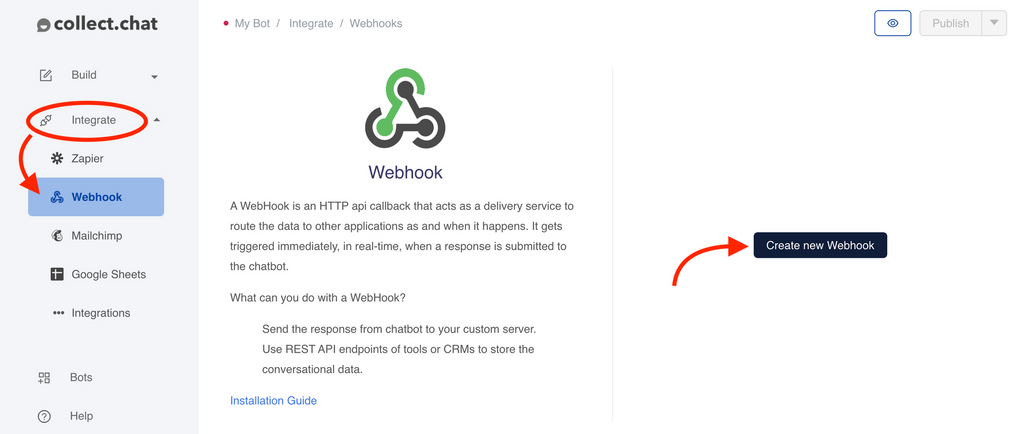
You can find the settings under Integrate > WebHook of your bot page.

Click on Create Webhook.
Fields of the Wehbook

1. Webhook URL
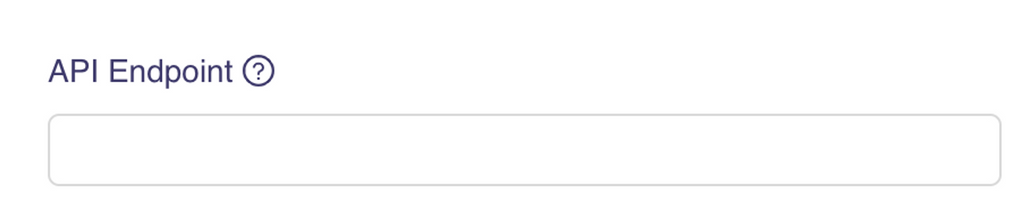
Here you need to specify the public API URL you have on your server.

2. Method
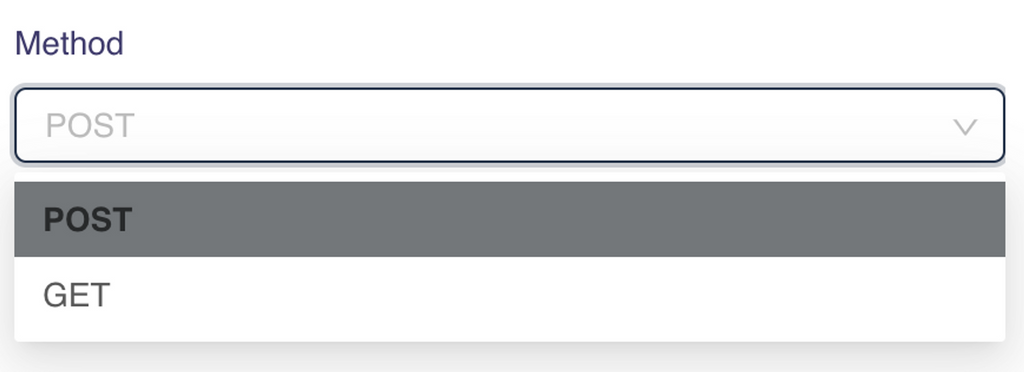
Choose an API method according to how you wrote the API. We currently support GET and POST requests.

3. Content Type
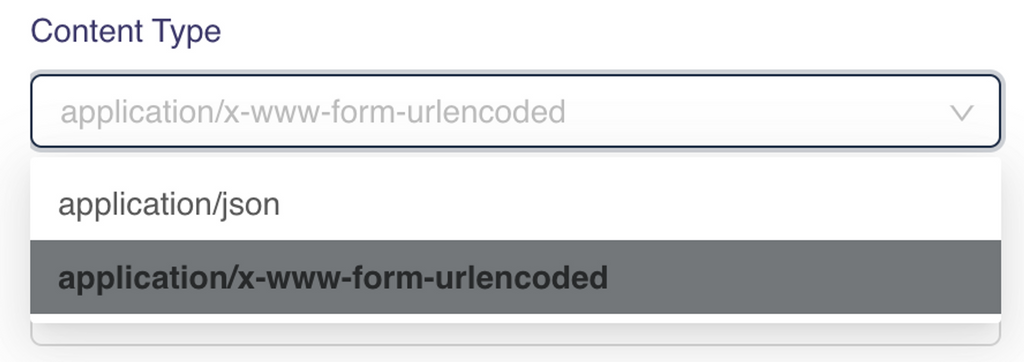
Here you can choose a content encoding 'application/x-www-form-urlencoded' or 'application/json' which we want to send data. The default value is 'application/x-www-form-urlencoded' and this works in most of the cases.

4. Keys for the data

You can see all your questions listed and a text box corresponding to them. You need to provide keys here from which your API will be catching data. We also log IP address and the page on which the data was collected. You can choose custom keys for these data as well

5. Headers

You can add headers in your WebHook to perform various actions such as authorization.

6. Hidden Fields

If you have key-value pairs that are mandatory in an API request, you can provide them here.

How to Proceed

1. Fill in the above fields according to how your webhook URL works.

2. Click on send Test Signal. You will get a success/error message depending on the status.
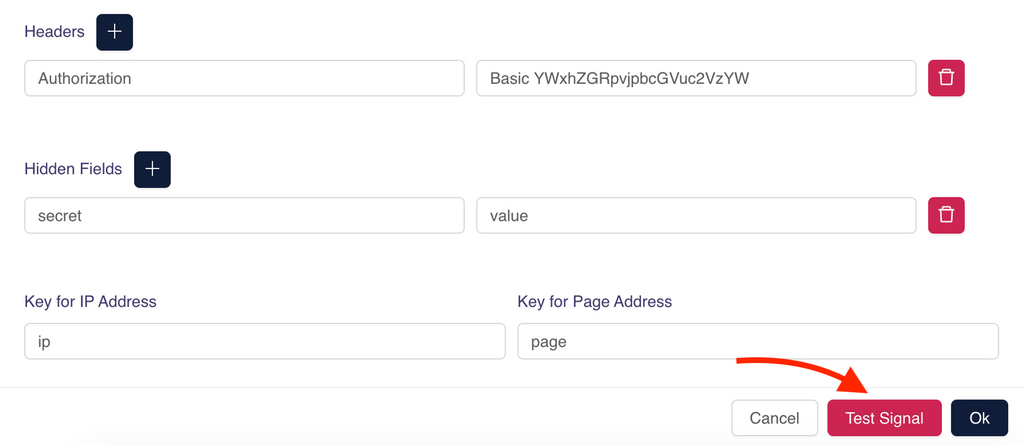
3. Check if the request hits your server. Alternatively, you can use some proxy intercepters like Webhook.siteIntercept.rest, to test the integration.

4. Congratulations! Webhooks are now active on this chatbot, and any new submissions will be automatically notified to the specified Webhook URL.


Still need help?

Contact us

Was this article helpful ?

Still need help?

Contact us

General

General

How to create your first chatbot with Collect.chatGoogle Tag ManagerMailChimpShow or Hide the bot based on URLSet up custom domain for chatbot pageEmail NotificationsResponse StatusWhere can I get my Invoice?Facebook PixelSend the data to your server using webhookGoogle CalendarIs there a discount?How to add chatbot to BigCommerceTranslate your ChatbotLogical JumpGoogle SheetsSalesforceMultiple Emails and RoutingFreshdeskIntegromatMy payment has failed, what to do?What is a response?I am getting spam responsesZapierWhat happens when I upgrade or downgrade?LeadsBridgeGoogle AnalyticsWhy am I not getting email notifications?How to add billing address to my invoice?Webhook in my chatbot is not workingThe changes I made to my chatbot are not visibleWhat is your refund policy?Why is my chatbot not showing up on my website?Do you have a trial account?How to add chatbot to WordPressHow to cancel my account?How to add chatbot to Medium BlogsHow to add chatbot to ShopifyHow do you charge us?How to add chatbot to CloudflarePermanently remove my chatbotHow to make the payment?How to add chatbot to NotionCan I use Collect Chat for free?What happens when I cross the response limit?How to add chatbot to Mobile AppHow to add chatbot to WeeblyHow to add chatbot to TumblrHow to add chatbot to SquarespaceHow to add chatbot to WixShare chatbot as a Landing PageHow to add chatbot widget to WebsiteConversational Marketing Chatbots and Collect.chatHow Chatbots work inside a WebsiteHow to embed chatbot in a webpageDesign a conversational landing pageCreate a copy of the botAdd a custom avatarCan I block responses from an IP address?How to add a welcome message to chatbot widget?Add a video from LinkedIn to the chatbotStop saving data on Collect.chat's serverAdd slides from SlideShare inside the chatbotAdd a video to the chatbotCan I customize the speed of the conversation?Validate phone number inside chatbotHow to capture email addresses?Open the chatbot if user is about to leaveShow or Hide the bot based on ReferrerAddress users by name using variablesEdit the chatbot conversationShow or Hide the bot based on LanguageHow to design my chatbot?Add an image to the chatbotShow or Hide the bot based on API parametersShow or Hide the chatbot based on deviceShow or Hide the bot based on CountryShow or Hide the bot based on UTM tagsShow or Hide the bot based on Operating SystemManage the date and time of when bot has to appearHow to target my users?Show or Hide the bot based on browserOpen the chatbot as the user is scrolling downTeam CollaborationShow or Hide the bot for repeating visitorsHow to hide the chatbot for a user who has already given answersOpen the chatbot widget based on a timerRedirect to a URL based on user choiceWhat is a Script Type?Add data from URL parameters inside a conversationWhatsApp typeOpinion Scale TypeAppointment typeFile Upload TypeThank You TypeText Question TypePhone Number TypeSet up custom domain for chatbot pageRange TypeLinks TypeNumber TypeDate TypeMessage TypeRating TypeEmail TypeAdd live chat supportMulti Select TypeList TypeCapture UTM parameters from URLsSend data from chatbot to pre-fill a webpageTrigger chatbot from a Link or ButtonMulti Choice TypeHide welcome message in mobileHide welcome message for repeating visitorsHow can I analyze my data?Load a new chatbot for repeating visitorsHow to edit my personal information?Add custom messages to the conversationTrack your chatbot using custom analyticsAdd custom data in chatbot responseIdentify a user in Email or SMS campaignsDynamic web pages based on user choiceHow to enable developer options when the chatbot type is Embed?Invoke a new chatbot on the same webpageOpen the chatbot instantly on page loadDo you have an API or tools for developers?Can I export my data?Why do I see symbols in my exported CSV?Do you have support for RTL languages?How to accept only business emails?How to get IP address of chatbot userWhat does your Unlimited Plan offer?How to accept payment via the chatbot?In WordPress, how can I embed a chatbot inside a page or a post?In WordPress, how can I add a different chatbot for a different page?How to trigger a bot from a WordPress Menu?In WordPress, how can I control the behaviour of the bot?How to change my email address?Publish the chatbotHow to be an affiliate?How to change metadata for chatbot pageCan we make a messenger chatbot?Are you GDPR compliant?Can I use multiple chatbots on my websites?Where can I see my Bot ID?How to change my password?Hide welcome message everywhereSetup different chatbot on different pages of the websiteTemporarily disable my chatbotRedirect to a page when conversation endsMulti Select and Multi Choice, what's the difference?Copy a MessageHow to add chatbot to WordPressIn WordPress, how can I embed a chatbot inside a page or a post?WhatsApp typeHow to trigger a bot from a WordPress Menu?In WordPress, how can I control the behaviour of the bot?Send the data to your server using webhookIn WordPress, how can I add a different chatbot for a different page?Welcome to the AI-first Help.Center!Welcome to the AI-first Help.Center!
